Lantern Files提燈

Where's that photo or file? Say one sentence and AI finds it.Even if you've encrypted it, enter your password and it still finds it.The AI on your computer understands your photos. No internet. Completely free.

Get it from the Microsoft Store Windows 10 / 11 · Version 0.2.8
See all your photos
Find with a sentence

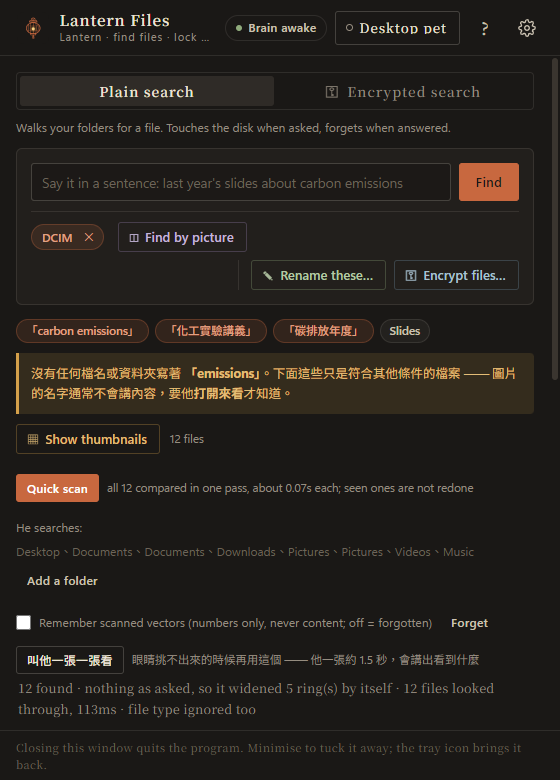
Find photos and files by describing them

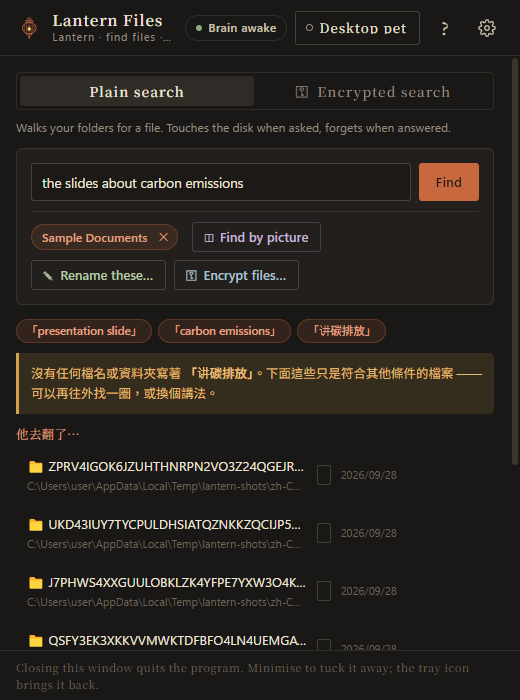
Type "sunset at the beach last year" or "the slides about carbon emissions". The AI understands what's inside, so you don't need file names.

Lock your files

Lock away private files

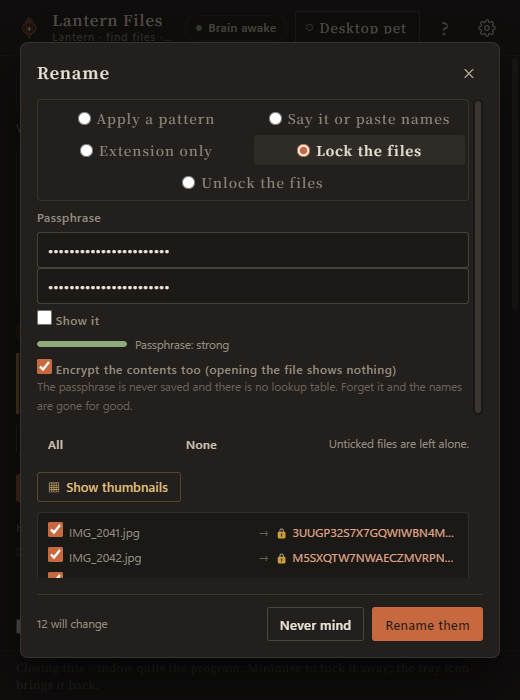
The name and the contents are both encrypted. No one else can open them or tell what they are. Only your password opens them.

Enter your password and search locked files

Still findable when locked

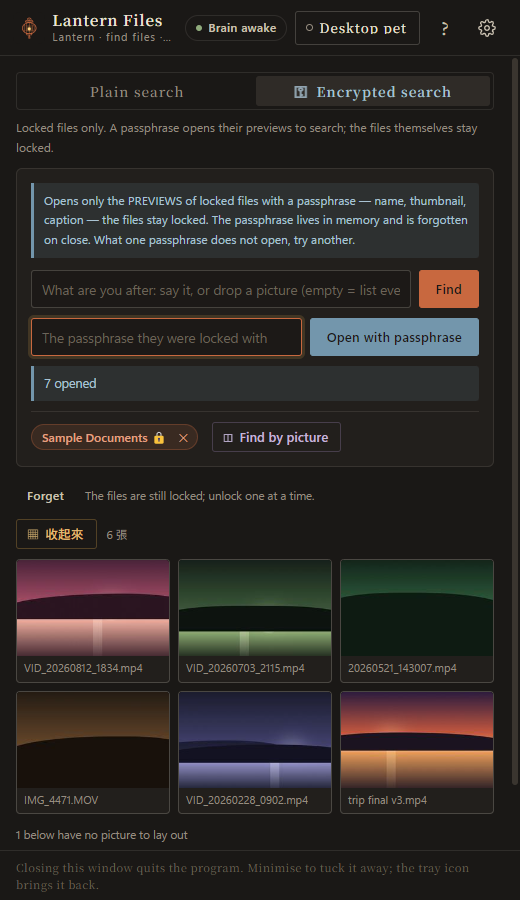
Enter your password to search your locked files. Only the one you pick is opened; the rest stay locked.

And a desktop pet

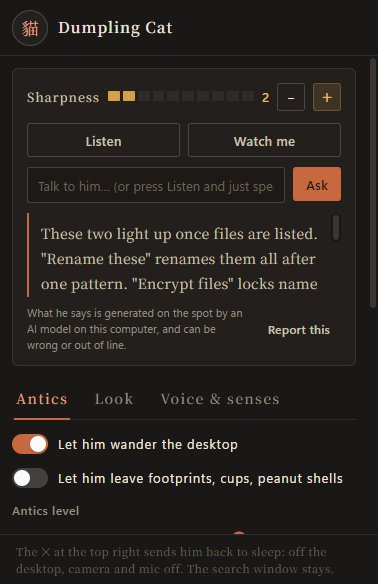
He walks around your desktop. You can chat with him or ask him to find something. Don't want him? One click sends him to sleep.

The desktop pet

Questions

Can it find files I encrypted with another program?

No, it only finds files encrypted with Lantern. For password-protected 7-Zip or WinRAR files, unlock them with that program first, then encrypt them with Lantern. Whole-drive encryption like BitLocker is not affected; those files are found as usual.

Will they still open on a new computer or after reinstalling Windows?

Yes. Bring the files and remember your password, and they open on any computer with Lantern installed.

Are my photos and files sent over the internet?

No. The AI is installed on your computer, the program never goes online, and there is no account to sign up for.

What if I forget my password?

Then the files can't be opened. The password is never saved, and we can't open them either. Back up anything important before you encrypt it.

Is it safe?

It uses AES-256, the same encryption banks and governments use. But if your computer has a virus or someone sees your password, no encryption program can protect you, so keep your password safe.

Can the AI make mistakes?

Yes. The AI decides on the spot on your computer and sometimes finds or says the wrong thing. You can report it to us from the settings.

What computer do I need?

Windows 10 or 11. It takes about 2.7 GB to install; the AI is included, so it works without the internet.

Full guide
  1. Find with a sentence

    Find · Just one folder

    1. Type a sentence in the search box at the top, e.g. "photos from the beach last month". 2. Press "Find" (or Enter). 3. It asks "Is it a picture or a video?": press "Yes" for photos and videos, "No" for documents and other files. 4. The results are listed below; click one to open it. Only one folder? Before step 1, press "Just one folder" and pick it.

    Find with a sentence
  2. Lay the pictures out

    Show thumbnails · Find by picture

    1. Find the photos first with "Find". 2. Press "Show thumbnails" above the list; every picture is laid out in a grid. 3. Hover over one to enlarge it, click to open it; "Back to list" goes back. Looking for pictures like one you have? Drag it into the window, or press "Find by picture" and pick it.

    See all your photos
  3. Rename, lock

    Rename these… · Encrypt files…

    Renaming: 1. Find the files first with "Find". 2. Press "Rename these…". 3. Choose "Rename by meaning", type a sentence such as "rename them all to Tokyo trip" or "add the date", and press "Preview". 4. Check the new names and press "Confirm". A rename can be undone. Encrypting: 1. Find the files first with "Find". 2. Press "Encrypt files…". 3. Type the passphrase twice. Forget it and the files can never be opened, so keep it safe. 4. Press "Confirm". The names turn into random letters and the contents are locked. Unlocking: 1. Press "Encrypted search", type the passphrase you used, and press "Open". 2. Find the file in the list and press "Open this one…". 3. For a quick look choose "Open temporarily" (press "Put it back" on its row when you are done); to unlock it for good choose "Decrypt permanently". Many at once: find them in the plain search, press "Encrypt files…", choose "Unlock the files", type the passphrase, press "Confirm". Or, under "Encrypted search", "Unlock directly:" has "Choose files…" and "Choose a folder…".

    Lock your files
  4. Search inside locked files

    Encrypted search

    1. Press "Encrypted search" at the top. 2. Type the passphrase you encrypted with in the passphrase box and press "Open". 3. Type what you are looking for and press "Find"; it asks about pictures here too. 4. Click a result or press "Open this one…", then choose "Open temporarily" or "Decrypt permanently". Only the one you pick is opened; the rest stay locked. It knows only files locked by Lantern; files locked by other encryption programs cannot be found or opened here. After 10 minutes with the computer idle, the passphrases are cleared and temporarily opened files are put back.

    Enter your password and search locked files
  5. Desktop pet

    Desktop pet

    1. Press "Desktop pet" at the top right; he appears on your desktop. 2. Type or talk to him; you can also ask him to find files. 3. The ✕ on his window sends him back to sleep. What he says comes from a model on this computer and can be wrong.

    The desktop pet