Lantern Files提燈

Some videos are for your eyes only.

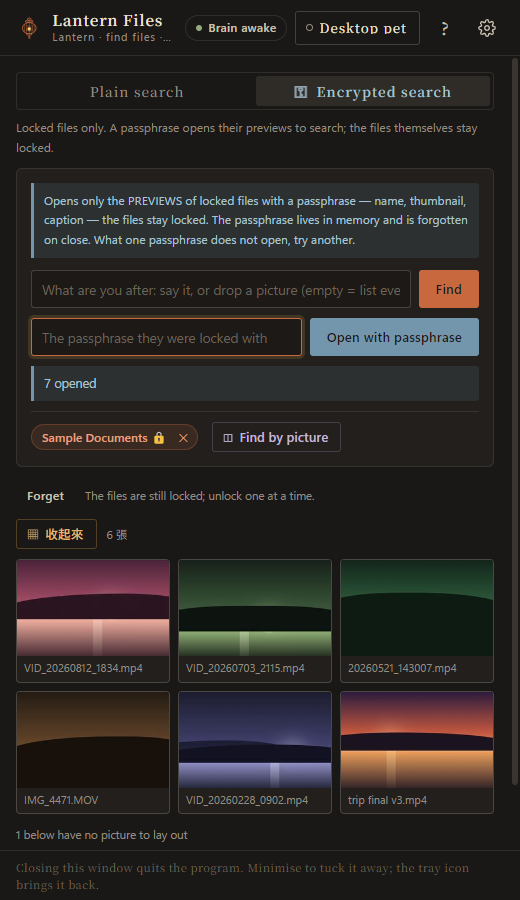
Locked away and still findable: enter the passphrase and a sentence searches inside them.

Lock a video: name and contents encrypted together, so from the outside nothing shows what it is, and only your passphrase opens it — we can't either. To watch one you don't unlock them all: enter the passphrase, every thumbnail and name is laid out, pick the one you want, and only that one opens.

Get it from the Microsoft Store Windows 10 / 11 · Version 0.2.2
  • Free for now
  • Never online
  • No account
  • The AI runs on your machine
  • Windows 10 / 11

About 2.7 GB to install — the AI models come with it, so it works with the network unplugged.

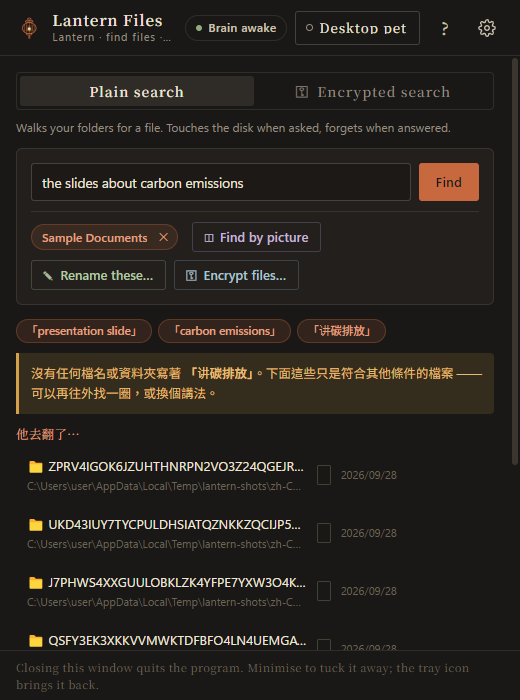
Find with a sentence
Locked videos: thumbnails laid out, one unlocked

Find it

No sorting first, no remembering filenames. Say what you want — "photos from the beach last month", "that presentation about carbon emissions" — and it reads the sentence and walks your own disk. It looks when you ask and forgets afterwards; there is no background index.

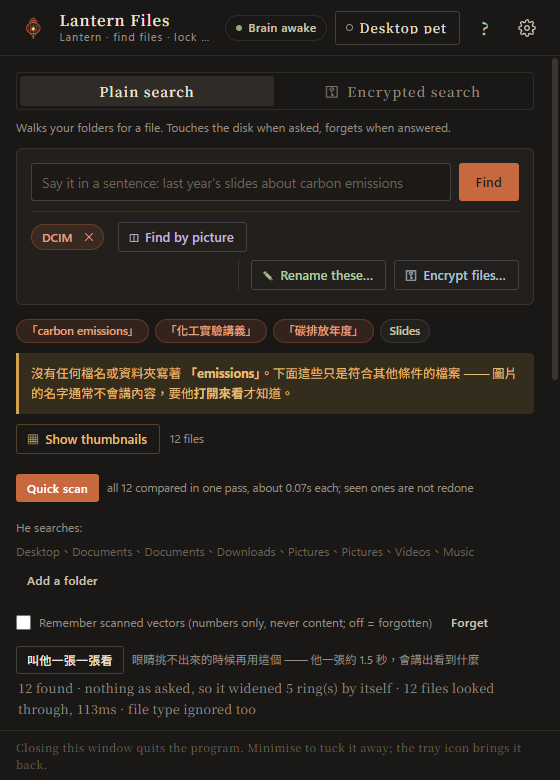
Lay the pictures out

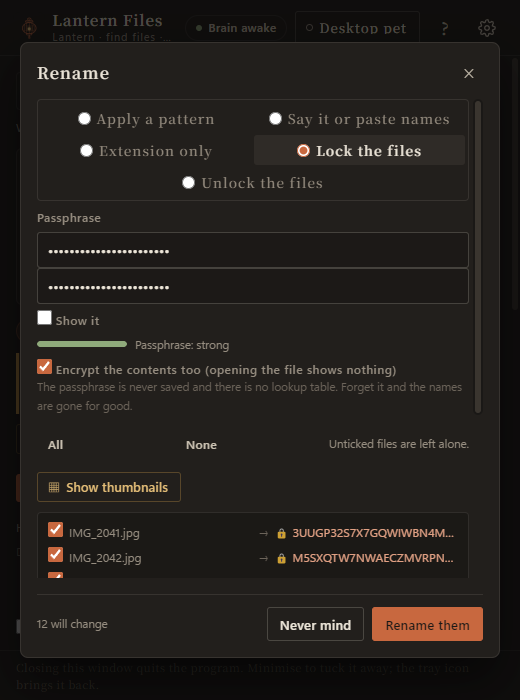
Hide it

Name and contents encrypted together. From the folder it is just a file that will not open — nothing shows that it is a video, or what it is of. Only your passphrase opens it, and we cannot either.

Lock in one click

Say it in a sentence — and it asks before every step

A light agent: five things and no more — find files, lay pictures out, rename a batch, lock and unlock, search inside what is locked. It does not act on its own and it does not decide for you; it reads your sentence, proposes the next step, and waits. If it read you wrong, the buttons are all still there.

  • ›photos from the beach last month
  • ›could you find my chat videos and lock them for me?
  • ›how do I lock files

The first is a search. The second goes and looks, lays the list in front of you, and then asks whether to lock what it found — the passphrase is yours to type and the button is yours to press. The third it simply answers.

Looks like a lot to learn? Just ask him.

There is nothing to read first. Type "how do I lock files" into the search box and he answers on the spot, naming the button that does it; "See the whole guide" beside the answer lays out all five steps. If he misread you, "No — search for this" is right there next to it. It is one guide in three places — the ? in the corner, the pet, and this page — so they cannot tell you different things.

The five steps are below ↓

And one more thing

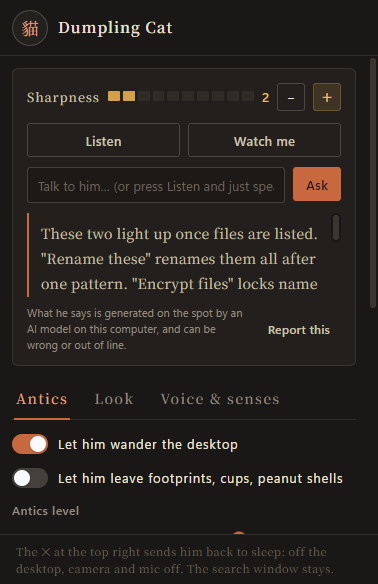
He wanders your desktop. Type to him or just talk — ask him to find something, or say nothing in particular. While the disk is being searched, at least somebody is waiting with you. What he says comes from the model on your machine and can be wrong; the ✕ on his window sends him back to sleep.

The desktop pet

How it goes

Five things, in the order you do them. Nothing to memorise — when you forget, ask him the way above.

  1. Find with a sentence

    Find · Just one folder

    Describe what you want, like "photos from the beach last month" or "pictures of Token Tycoon". It reads the sentence and looks through the files on this computer — no sorting first, no internet. To look in one folder only, press "Just one folder" first.

    Find with a sentence
  2. Lay the pictures out

    Show thumbnails · Find by picture

    When what it found are pictures, "Show thumbnails" lays them all out on one big sheet so you see them at once instead of opening each. Have a picture and want ones that look like it? Drop it in with "Find by picture".

    Lay the pictures out
  3. Rename, lock

    Rename these… · Encrypt files…

    These two light up once files are listed. "Rename these" renames them all after one pattern. "Encrypt files" locks name and contents together — videos too — opened only by the passphrase; on files already locked the same button unlocks. Both only rename: nothing is moved, deleted or overwritten, and a rename can be undone.

    Lock in one click
  4. Search inside locked files

    Encrypted search

    A locked file gives nothing away from outside, so there is a second search. Switch to "Encrypted search" and enter the passphrase: every video's thumbnail and name is laid out while the files stay locked, and a sentence finds things among them. Pick the one you want and click its thumbnail (or press "Open this one…") and it asks whether to open it for now — it goes back by itself when you close it, or close the program — or to unlock it for good. Only the one you picked is ever opened.

    Locked videos: thumbnails laid out, one unlocked
  5. Desktop pet

    Desktop pet

    "Desktop pet" at the top right calls him out: he wanders the desktop, you can type or talk to him, and you can ask him aloud to find files. What he says comes from a model on this machine and can be wrong. The ✕ on his window sends him back to sleep.

    The desktop pet

A few honest things

  • A locked file still shows up as a file in its folder — it just can't be read or opened.
  • Your passphrase is never stored. Forget it, and the file really is gone — for you and for us.
  • AI content in the program is generated on the spot by a local model and can be wrong or out of line; there is a "Report AI content" button in the settings, and whether to send is up to you.

Privacy

The program never goes online, has no accounts, no servers, and collects no data. The AI models that read your sentence and look at pictures are installed with it and run on your machine. Microphone, camera and screen are three switches, all off by default; on, they feed only the local model, and nothing is stored or sent.

The full privacy policy →